Battery Monitor is Batterieslab's free app for iPhone and Android. It connects to your battery over Bluetooth, shows its state live, keeps its history, and is where you register the battery for the warranty and ask us for help.
Install the app
Install Battery Monitor by Batterieslab from the App Store or Google Play.
The app updates itself: when a new version is required it says New version available, and Settings → Check for updates looks for a newer one at any time.
Sign in
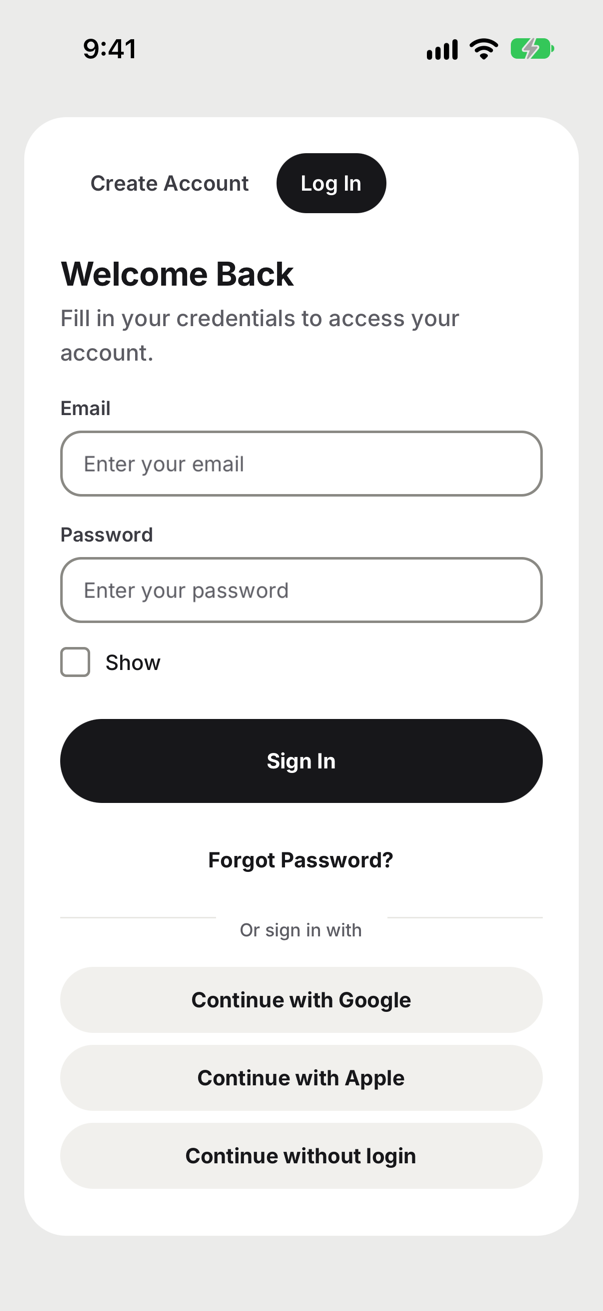
Open the app and choose how to sign in
Use Log In if you already have an account, or Create Account to make one. You can sign in with your email and password, Continue with Google, or, on an iPhone, Continue with Apple.
Log In and Create Account Confirm your email
If you signed up with an email and password, we send you a link to confirm the address. Until you do, the app shows Confirm your email address with Resend link.
Tell us who you are
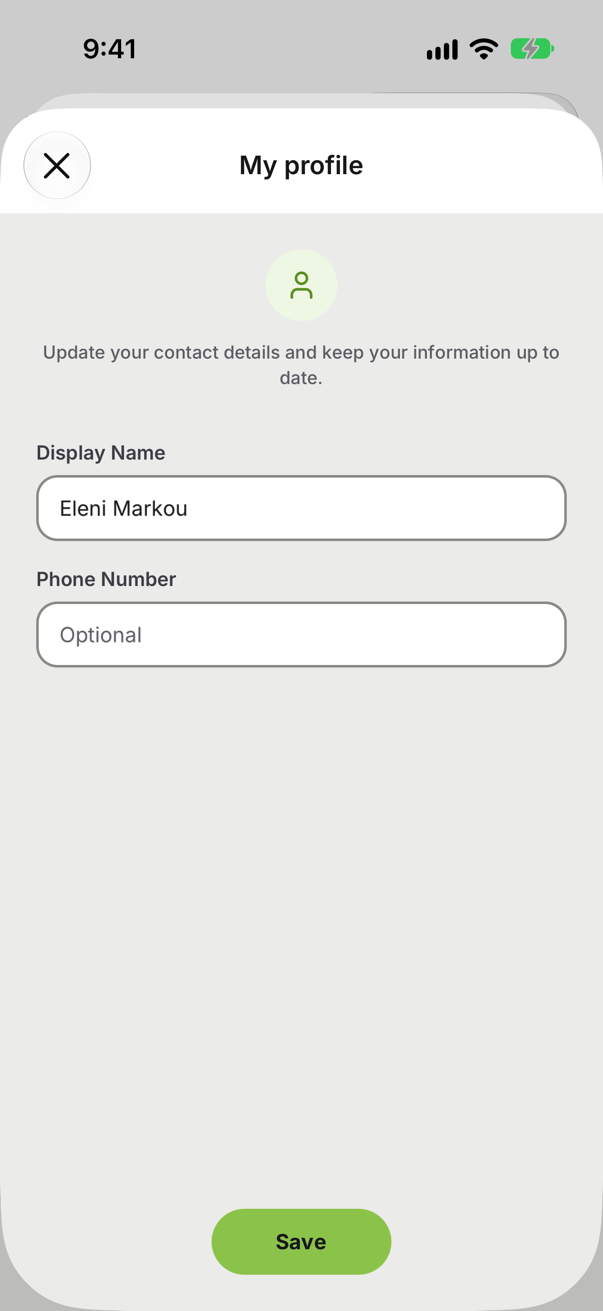
The first time, the app asks for a display name and, if you like, a phone number, so we know who we are talking to when you need support.
Allow notifications
Battery Monitor then asks Hear when we reply. We send a notification only when your support case is updated or answered, when a remote support session or an Ermis Cloud request needs you. Nothing else.


Your password needs at least 8 characters, with letters and digits. Forgot it? Tap Forgot Password?, then open the link from the email on the same phone; the link works for one hour.
Connect over Bluetooth
Turn on Bluetooth and stand near the battery
The battery's Bluetooth reaches a few metres. Stay close, especially the first time.
Allow Bluetooth
On an iPhone, allow Bluetooth when Battery Monitor asks. On Android, allow Nearby devices and Location: Android needs both to scan for Bluetooth devices.
Find your battery
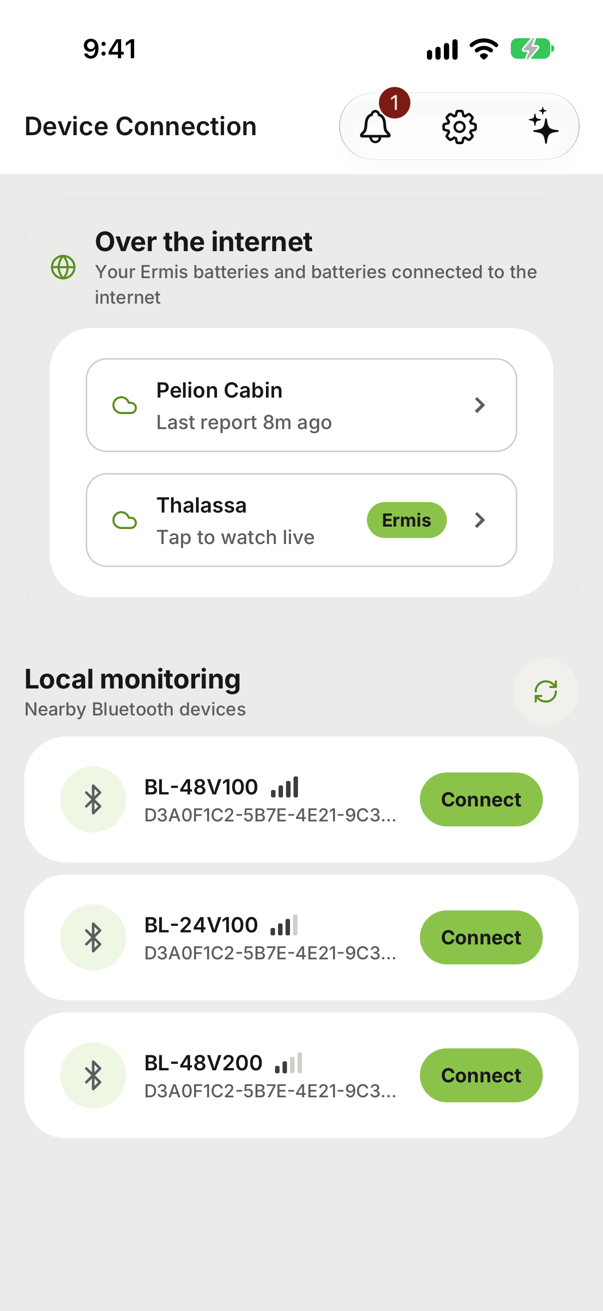
The home screen, Device Connection, lists nearby batteries under Local monitoring. Each card shows the battery's Bluetooth name and its signal. Tap Scan again if yours isn't there yet.
Device Connection Tap Connect
The app connects, reads the battery's identity, and opens its dashboard. No PIN or pairing in the phone's Bluetooth settings is needed: Battery Monitor talks to the battery directly.

You can connect to several batteries at once, for example every battery of a bank. With two or more connected, View all shows them together.

To disconnect, open the battery's menu (⋯) and tap Disconnect, or tap Disconnect on its card. To give the battery a recognisable name, use ⋯ → Rename Battery (1 to 20 letters, digits or symbols, without accents or Greek letters).